
Get Strathmore Events in Your Calendar
Quick setup guide for Strathmore parents
Just 4 steps - takes about 2 minutes
1. Create Your Account
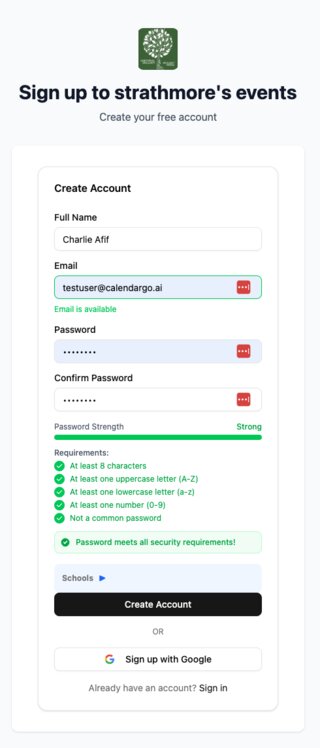
Click the button below to open the Strathmore sign-up page. Enter your name, email, and create a password.
Sign Up for Strathmore EventsQuick option: You can also tap "Sign up with Google" to use your Google account.
2. Verify Your Email
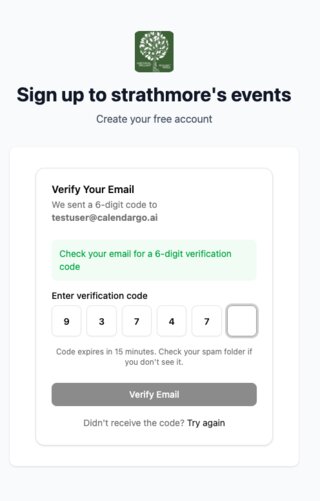
Check your email inbox for a 6-digit verification code. Enter the code on the verification screen.
Don't see the email? Check your spam/junk folder. The code expires in 15 minutes.
3. Connect Your Calendar
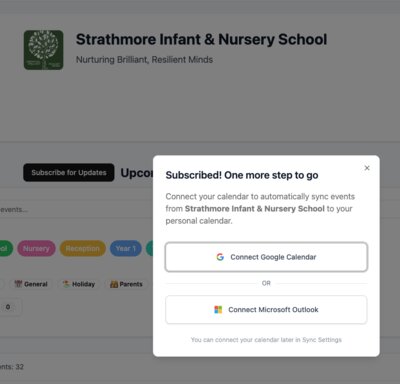
After verifying, you'll see a popup asking to connect your calendar. Tap "Connect Google Calendar" or "Connect Microsoft Outlook".
Why connect? This allows Strathmore events to automatically appear in your personal calendar (Google Calendar, Outlook, Apple Calendar, etc.)
4. Authorise Calendar Access
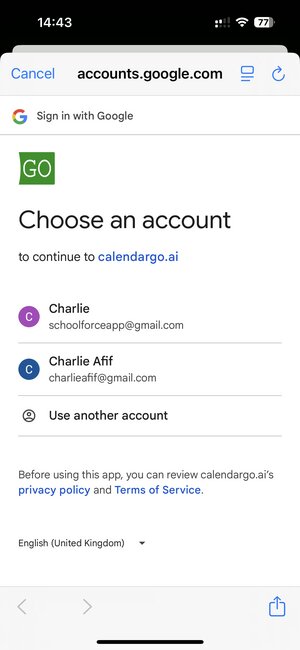
Step 4a:
Select the Google account you want events synced to.
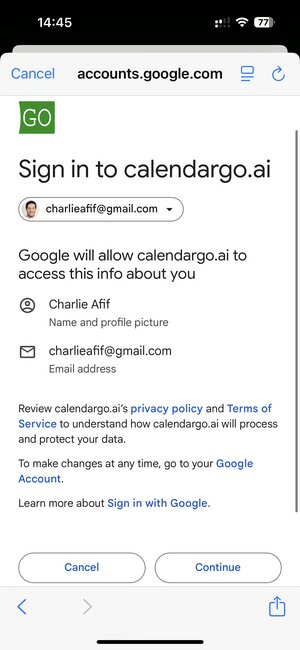
Step 4b:
Review the permissions and tap "Continue".
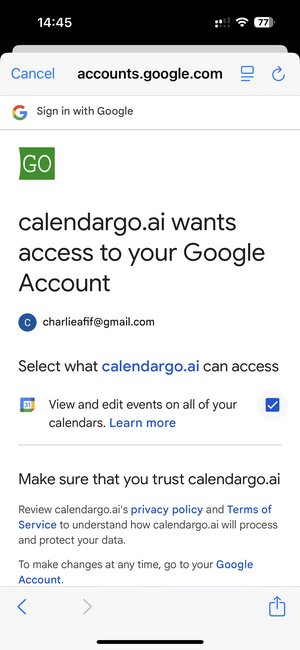
Step 4c:
Important! Check the box to allow calendar access, then tap "Continue".
You're All Set!
Strathmore events will now automatically sync to your calendar. You can adjust which year groups and event types you receive in your dashboard.
Jump to step:

Want the Mobile App?
Get push notifications and manage events on the go with our mobile app.
Mobile App Setup GuideQuestions? Email us at support@calendargo.ai