
Free for iPhone and Android
Your school calendar, in your pocket
See every event from your children's schools in one list, get a nudge before the important ones, and keep your Google or Outlook calendar in sync.
Already downloaded it? Follow the setup guide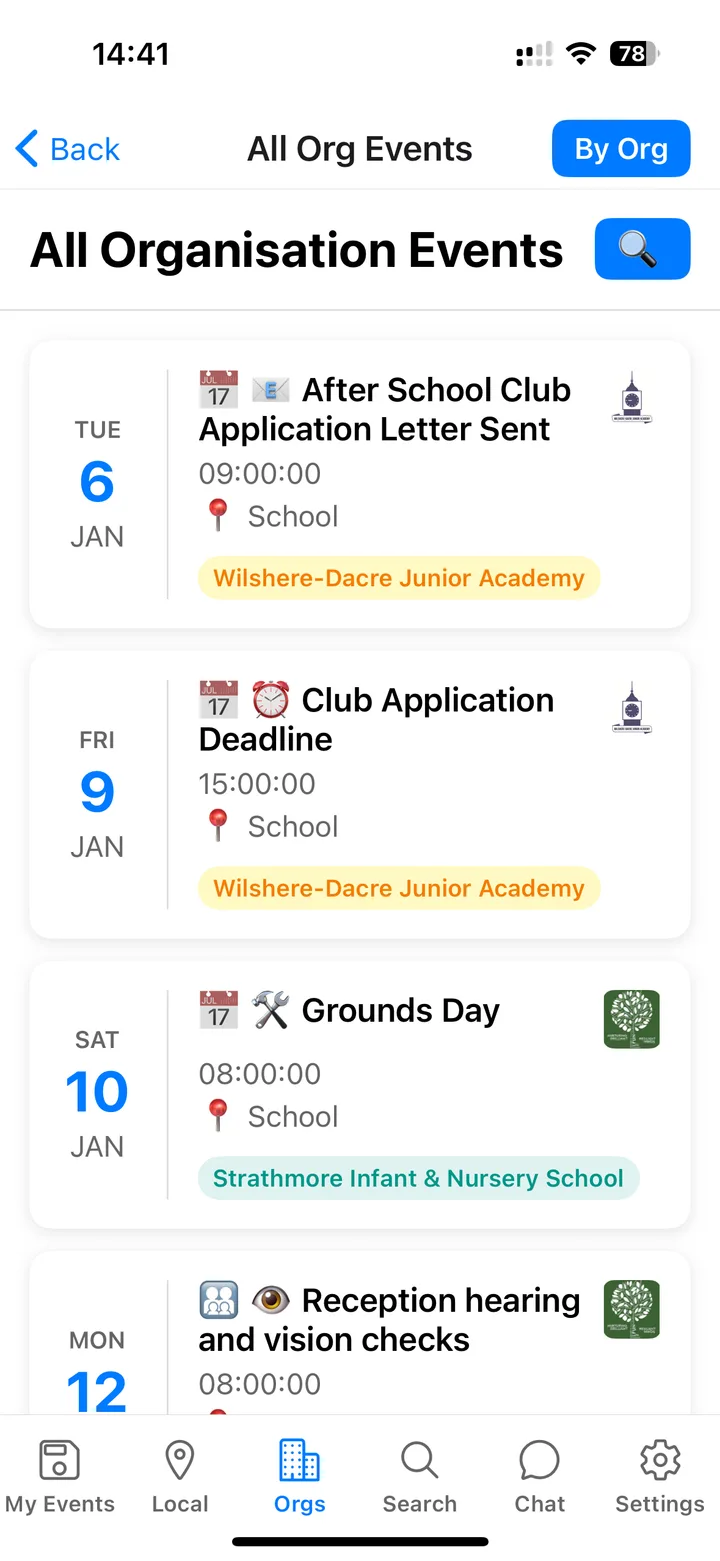
Every school, one list
Each school gets its own badge, so you can see everything together or one at a time.
Push notifications
Get a nudge about new events and the ones coming up soon.
Snap a flyer
Take a photo of an invitation or poster and we'll turn it into an event.
Ask about newsletters
"When is puzzle club?" Get an answer with a link to the newsletter it came from.
Setup guide
Up and running in 8 steps
We've used Strathmore as the example school. Swap in your own.
Step 1
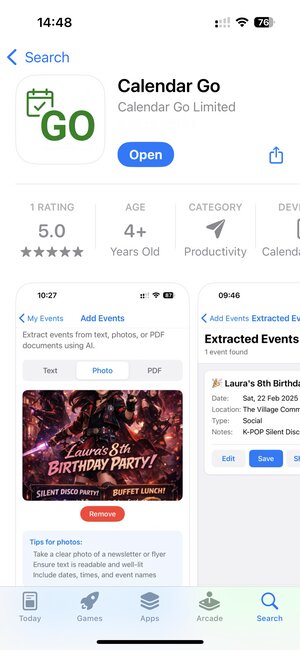
Download the app
Search for "Calendar Go" in the Apple App Store, or join this Google Group to download the Android app.
Tip: Look for the green calendar icon with a checkmark and "GO" text.
Step 2
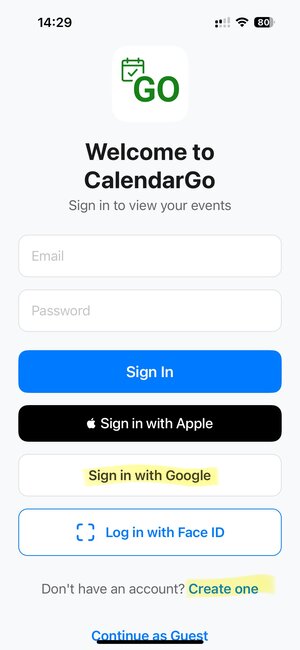
Create your account
Sign up using your email, Apple ID, or Google account. You can also tap "Create one" at the bottom.
Quick option: "Sign in with Apple" or "Sign in with Google" is fastest!
Step 3
Connect your calendar
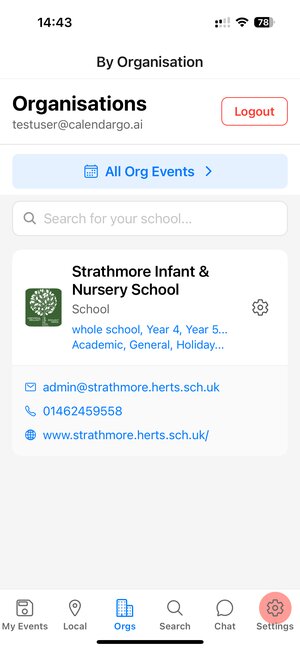
Notice the red circle on the Settings tab? This means you need to connect your calendar. Tap the Settings tab.
Important: Connect your calendar first so school events sync automatically!
4. Authorise calendar access
Step 4a
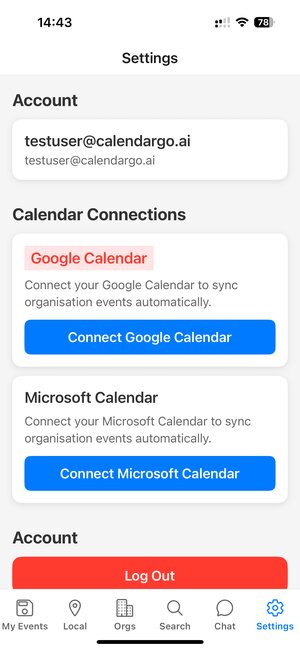
Within the Settings tab, tap "Connect Google Calendar" (or Microsoft if you use Outlook).
Step 4b
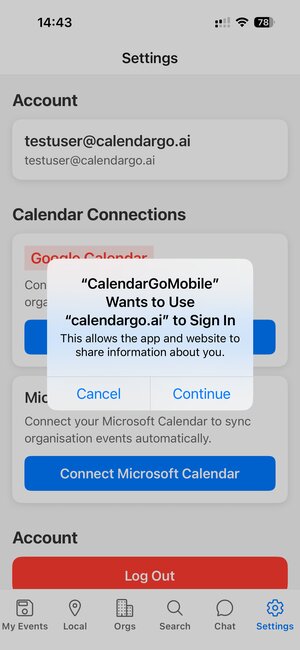
A popup appears. Tap "Continue" to proceed.
Step 4c
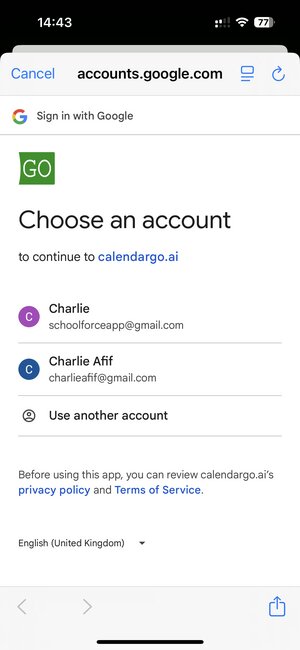
Select the Google account you want events synced to.
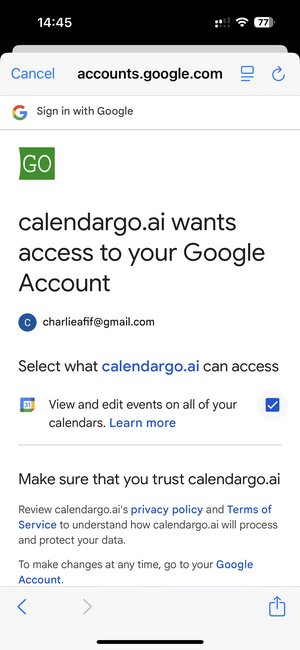
Step 4d
Important! Check the box to allow calendar access, then tap Continue.
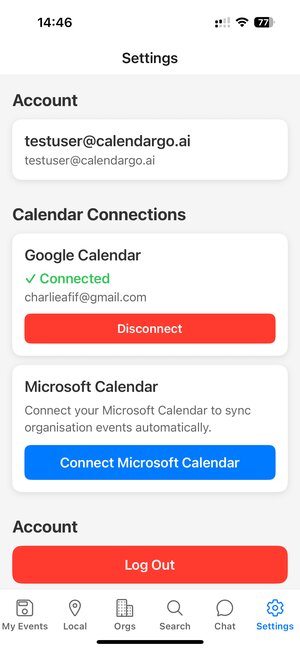
Step 5
Verify your connection
Go to Settings and check it shows "Connected" next to the calendar you connected (Google or Microsoft Outlook).
Not showing "Connected"? Tap another tab (e.g. My Events), then tap Settings again. If it still doesn't show, repeat the connection steps and make sure to check the calendar permission box from step 4d.
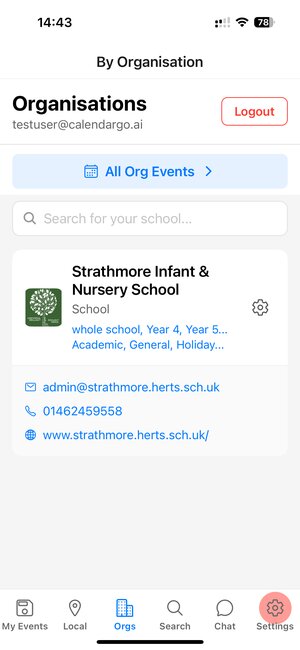
Step 6
Subscribe to Strathmore
Tap the Orgs tab at the bottom. Search for "Strathmore" and tap Subscribe.
Done! Once subscribed, you'll see the school listed. Tap on it to view events or tap the gear icon to adjust your events and updates preferences.
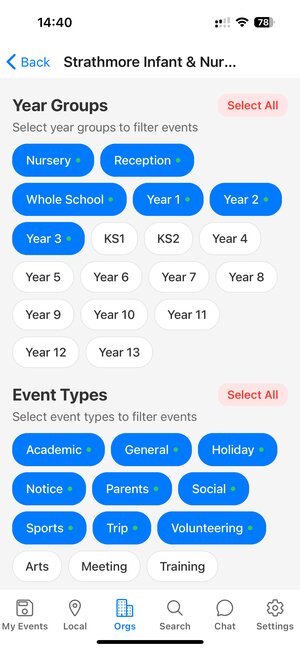
Step 7
Set your preferences
Tap the settings icon next to Strathmore to filter your subscribed events by:
- Year groups: select your child's year(s)
- Event types: choose Academic, Sports, Social, etc.
Tip: Blue badges with checkmarks show selected options. Only events matching your selections will auto-sync to your calendar. It's also best to leave all Event Types checked so you don't miss anything.
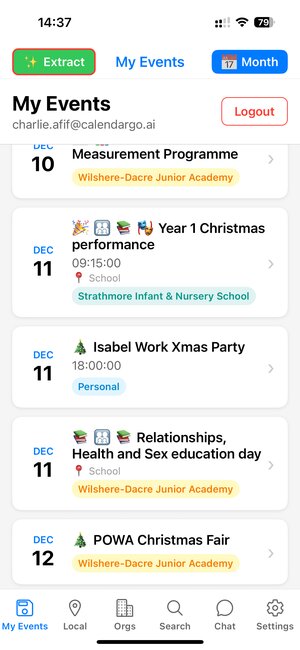
Step 8
You're all set!
School events will now appear in the My Events tab and automatically sync to your connected calendar!
Bonus features
- Local events: discover activities in your area
- Extract events: snap a photo of any flyer to add events
- Ask AI: chat about newsletter content
Questions? Email us at support@calendargo.ai
Get Calendar Go on your phone
Free for parents. Sign in with the same account you use on the website.